Usage guide
The RGB status LED communicates high-level network and provisioning state. The separate red/blue LEDs are used for per-button feedback.
Button feedback
| Indicator | User action | Action |
|---|---|---|
| 400 ms | Single press | Sent as a command. |
| alternating | Double press | Sent as a command. |
| 600 ms | Hold | Sent as a command. |
| blinking | Hold (10 s) | Factory reset device. |
Usage guide
The Matter firmware intentionally keeps the Generic Switch device type. That is the
semantically correct Matter model for this hardware, even though not every ecosystem
handles it well.
In Home Assistant, the Matter variant is exposed as one Generic Switch device that
emits Matter switch events instead of separate per-gesture entities.
Unlike the Zigbee variant, Matter also exposes the measured battery voltage as a
normal user-visible value in Home Assistant.
Battery Life Estimate
About 2.3 years.*
* Assumes a 2200 mAh battery, 10 clicks per day on average, the current 10 second idle timeout after each click, about 40 uA in deep sleep, and about 60 mA average active draw while Matter over Thread is awake. Real battery life varies with RF conditions, retries, recommissioning, and battery self-discharge.
Supported Platforms
| Platform | Status | Notes |
|---|---|---|
| Home Assistant | Primary Matter target; requires the Matter integration and a Thread border router | |
| Google Home | Provisioning can succeed, but the device is known to appear permanently offline afterward; automations and usable status reporting are not available | |
| Alexa | Not a supported target for this firmware | |
| Apple Home | Not a supported target for this firmware |
Because Google Home, Apple Home, and Alexa are not supported targets for this project, the firmware does not optimize the Matter path for their ecosystem-specific behavior. The battery-first deep sleep policy is therefore preferred over keeping commissioned Matter devices continuously awake.
Color Code
| Indicator | Meaning |
|---|---|
| off | Device is commissioned and idle |
| pulse | Device is not commissioned and is waiting for initial Matter commissioning |
| pulse | Matter provisioning phase 1 is active; the device is being paired to Matter/Thread |
| pulse | Matter provisioning phase 2 is active; the device is commissioned but still waiting to be assigned to the target controller |
| steady | Matter provisioning flow completed successfully |
| steady | Device is awake and a button event is queued for delivery |
| steady | Button event was delivered successfully in normal operation |
| steady | Matter connection or button delivery failed |
Getting Started
- Confirm that your device is hardware version 2. The version number is printed on the back, under the battery.
- Install using the web installer or by downloading and flashing the Thread binary from the GitHub Releases section for this repository.
- Scan the QR code below, or enter the manual pairing code if your controller asks for it.
- Select
Home Assistantin the setup flow and finish commissioning through Home Assistant Matter.
Default commissioning convenience values for the current development setup:
- Manual pairing code:
34970112332 - QR payload:
MT:Y.K9042C00KA0648G00
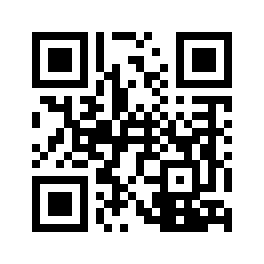
QR decoder: project-chip.github.io/connectedhomeip/qrcode.html
Home Assistant Automation Example
For Matter in Home Assistant, automate on the event.* entity state change
itself, not on the event_type attribute. This is important for repeated
identical presses such as single -> single, because the event entity state
changes every time while event_type may stay the same.
alias: Smart Button Matter
trigger:
  - platform: state
    entity_id:
      - event.smart_button_button
    not_from:
      - unavailable
    not_to:
      - unavailable
      - unknown

action:
  - choose:
      - conditions:
          - condition: template
            value_template: "{{ trigger.to_state.attributes.event_type == 'multi_press_1' }}"
        sequence:
          - service: light.toggle
            target:
              entity_id: light.example

      - conditions:
          - condition: template
            value_template: "{{ trigger.to_state.attributes.event_type == 'multi_press_2' }}"
        sequence:
          - service: scene.turn_on
            target:
              entity_id: scene.example

      - conditions:
          - condition: template
            value_template: "{{ trigger.to_state.attributes.event_type == 'long_press' }}"
        sequence:
          - service: switch.turn_off
            target:
              entity_id: switch.example
The default Matter event entity name is event.smart_button_button.
Zigbee via ZHA in Home Assistant is the primary Zigbee target for this project.
In Home Assistant, the Zigbee variant is exposed as three separate ZHA Binary Input
entities: Single Press, Double Press, and Hold.
Battery percentage is the primary battery value exposed through ZHA. The firmware
also maintains a Zigbee battery voltage attribute internally, but reporting for
that attribute is not reliably supported in the current ESP Zigbee stack / ZHA
combination and should not be relied on as a user-visible sensor.
Battery Life Estimate
About 2.6 years.*
* Assumes a 2200 mAh battery, 10 clicks per day on average, the current 10 second idle timeout after each click, about 40 uA in deep sleep, and about 50 mA average active draw while Zigbee is awake. Real battery life varies with RF conditions, retries, recommissioning, and battery self-discharge.
| Indicator | Meaning |
|---|---|
| off | Device is commissioned and idle |
| pulse | Device is not commissioned and is waiting for Zigbee commissioning |
| blink | Device was commissioned before, temporarily lost its Zigbee connection, and is waiting to reconnect |
| steady | Device woke up, is bringing Zigbee back up, or is waiting to send a queued button event |
| steady | Button event was accepted by the Zigbee stack on a known-connected network |
| steady | Zigbee commissioning completed successfully |
| steady | Zigbee reconnect or button delivery failed |
If the Zigbee device leaves the network without rejoin, the firmware clears its local Zigbee network state and returns to the blue commissioning state. A temporary disconnect or leave-with-rejoin instead shows the blue blinking reconnect state.
Getting Started
Confirm that your device is hardware version 2. The version number is printed on the back, under the battery.
Install using the web installer or by downloading and flashing the Zigbee binary from the GitHub Releases section for this repository.
Build and flash the Zigbee firmware locally if needed:
make zigbee
make flash-zigbee PORT=/dev/cu.usbmodem114101- Put your coordinator into join mode.
- Add the device through ZHA.